1. Your first check
A check asks an AI assistant five buyer questions about your category and counts how many of the answers name you. You need a free account first — every check spends real API budget, so there is no anonymous path.
- Create an account with an email and password, or with Continue with Google. The address is how you sign in and how a password reset reaches you — we do not email you results, digests or marketing.
- On the home page, enter your brand exactly as you would want a model to write it, and the category a buyer would actually ask about — “SOC 2 compliance software for startups”, not “software”.
- Run it. Five questions are written, asked independently, and scored.
You get a score out of five, the sentence that named you, and — when nothing named you — which brands got named instead. Every result has a share link at /r/<id> you can send to someone.
The category is the whole experiment. A category so broad that no answer could name any specific business will score zero for everyone, and that is a fact about the question rather than about you. Ask what a buyer would type.
2. Tracking a keyword
A one-off check is a snapshot. Tracking turns it into a trend: a brand and a category whose five questions are written once, at creation, and then re-asked verbatim on every later run.
Locking the questions is the point. If the questions change between runs, part of every movement is the question changing. Here they don’t, so a line that moves means one thing: the answers changed.
You do not have to write any of it yourself. Start from your domain and Claude drafts the brand, the category, the rivals and the five questions; you then correct them on a review screen, and nothing is stored until you press the button. You can also name the competitors you already know — knowing them changes the questions, because “best alternatives to X” is a question buyers really type and it can only be written by someone who knows X is your rival.
The draft is a draft, and the screen says so. Claude does not browse: it answers from what it already knows, so for a company it has never heard of it says so plainly and leaves the category to you rather than inventing one. A made-up category would be a claim about your business that nobody checked, and it would be frozen into five questions for as long as the keyword exists. If you already know your category, the form on the Keywords screen skips the draft entirely.
Tracked keywords run weekly on our key. Pro includes 3 daily slots on our key and Agency 10. Beyond those, a keyword can run daily only when your account holds its own API key for every model that keyword asks — because that daily run spends your key, not ours. Remove the key later and the keyword reverts to weekly rather than quietly moving seven runs a week onto our bill.
3. Reading the numbers
Three figures, and none of them is redundant:
- Visibility — the share of AI answers that named you.
- Share of voice — your mentions as a share of every brand named in those same answers. This catches the case where you hold your score but the model starts naming twelve rivals instead of three.
- Average position — where you land when you are named. It is a rank, so lower is better.
The one rule that makes everything else readable: a dash is not a zero. Where a figure could not be measured you get an em dash and a sentence, never a flattering zero. “Nobody named you” and “nothing has run yet” are different findings, and this product never prints one as the other. The same rule holds in the API and in the MCP tools, where the value is null rather than 0.
4. The dashboard, screen by screen
Your account is one page with a rail down the left. Each item loads only its own data, so a screen is a smaller page rather than a longer one.
- Overview — the headline figures, where you land when you are named, and what changed since the last run.
- Keywords — everything you track, with its latest reading and the change since the run before.
- Prompts — every locked question, weakest first. This is the screen that tells you which buyer question you are losing.
- Competitors — every brand an answer named instead of, or alongside, you.
- Models — the same questions broken out per assistant. A model that has never named you shows 0% and is never averaged with one that has; the spread between them is the finding.
- Sentiment — a cue-word count on the sentence that names you. Not a model’s opinion, and not a score: the whole word list is printed beside the verdict so you can disagree and check it.
- Answers — the full answers. Every stored reply, printed verbatim, with your brand and its rivals marked by the same matcher that scored the run.
- Sources — the pages a model returned as the sources for its own answer. See the note below on why this is often empty.
- Actions — what’s costing you recommendations, ranked by the answers at stake, including a competitor quoted where you aren’t. Each finding carries the arithmetic behind its rank and links to its evidence. Under each one, a collapsed playbook gives the usual fixes, labelled as advice and kept out of the numbers and the API. Over MCP it travels beside each finding, under the same label, never inside a measurement.
- Accuracy — what assistants say about your pricing, features, integrations and security, checked against your own site. Each claim shows the assistant’s words beside your page’s words, both found word for word; a claim whose quote cannot be found is discarded. Run on demand, a set number of times a month by plan, and exportable as CSV for your content team.
- Method — what each number counts, on the same page as the numbers.
Filters for brand and topic, and the 4W/8W/12W window, all live in the URL — so any view you are looking at can be bookmarked, reloaded or sent to someone. There is also a CSV export of one row per keyword per run, filtered exactly as the screen is.
Why Sources is usually empty — and what that means
Only a model that searches the web before answering has sources to report. Today that is Perplexity, and only on a key you have saved. Every other model answers from what it already knows, fetches nothing, and therefore has no sources — so the screen shows none rather than guessing where the answer came from. It names which of three situations you are in: nothing has run, nothing that ran reports sources, or something that does report them returned none.
5. Your own API keys
Under Settings you can save a key for ChatGPT, Gemini, DeepSeek, Llama 3.3 (Groq) or Perplexity. Saving one lets you re-ask a keyword’s frozen questions on that model whenever you like, set that keyword to daily, and — for Perplexity — fill in the Sources screen.
Keys are encrypted before they are written down, with a secret that is not in the database. Be clear about the limit of that: it protects you against our database leaking, not against us. A key pasted into a one-off check on the home page is used for that request and never written down at all.
Claude, ChatGPT and Gemini already run on us. Groq has a free API tier, so adding Llama 3.3 as a fourth model does not have to cost anything.
Every other model, with one key. Save an OpenRouter key in Settings and list the models you want by their OpenRouter id — openai/gpt-5.5, x-ai/grok-4, meta-llama/llama-3.3-70b-instruct and so on. Each id is checked against OpenRouter’s catalog when you save, and each appears wherever you can ask another model your locked questions. Add :online to an id and that model searches the web before answering and reports the pages it read, so the Sources screen fills in for it — the same thing a Perplexity key does. Runs bill your OpenRouter account.
6. Search Console and GA4
See whether AI recommendations turn into visits. In Settings you can connect Google Analytics and Search Console, read-only. Search & traffic then shows your last 28 days of Search Console clicks, impressions, CTR, position and top queries (tagging the ones that name a brand you track), and your GA4 sessions, including the visits that came from AI assistants such as ChatGPT and Perplexity. It is fetched from Google when you open the page and shown only to you; it is not stored and never sent to an AI model. Disconnecting in Settings revokes the access at Google.
To see the same AI visits inside GA4 itself, follow tracking AI referral traffic in GA4. It uses the same list of AI sources this screen does.
The same screen now puts each tracked keyword beside the Search Console queries that match its category, so you can see where you rank on Google but AI assistants never name you.
Site readiness audits your own domain the way an AI crawler reads it: which crawlers robots.txt blocks, whether the homepage is indexable and readable without JavaScript, its structured data and llms.txt, crossed with which crawlers actually came. Each row shows what was read, and separately, why it usually matters.
AI crawlers shows which AI bots — GPTBot, ClaudeBot, PerplexityBot and the rest — fetched which pages of your site. Add your domain to get a site key and a few lines to deploy in front of your site; they report only crawler requests, never a person’s visit. A visit counts as verified only when your own edge confirmed it came from the operator; the rest are what the user agent claimed.
7. Sharing a workspace
Keywords, runs and saved keys belong to a workspace rather than to you personally. On your own that distinction never surfaces — you get one workspace and it behaves exactly as an account did. It starts to matter when you invite someone.
From Team you can create additional workspaces and invite people to them. There are two roles: an owner, who can invite and remove people, and a member, who can see and use everything the workspace tracks. An invite is a link, and it is a credential — anyone holding it can join, so send it the way you would send a password, and revoke it from the same screen if it goes astray.
The query allowance is per owner, counted across every workspace you own. Making a second workspace does not give you a second allowance. But a workspace you were invited to is billed to whoever owns it, so joining a busy team never eats into your own — and if you leave, your allowance is exactly what it was before you joined.
8. Plan and payment history
Billing shows the plan you are on, when it renews, and every payment ever charged to your account — date, what it was for, amount, status, and a receipt you can open or download.
That list is read live from Stripe rather than from a copy we keep. A refund, a retried payment or a failed card shows here as soon as it happens, because there is no snapshot of ours to go stale. The trade is that if Stripe is unreachable the page says so rather than showing an empty table — “no payments” and “we could not ask” are different answers and you should not have to guess which one you are looking at.
Changing card, cancelling or switching plan happens on Stripe’s own billing portal, reached from the same page. Cancelling there does not cut you off on the spot: you keep the plan until the period you already paid for runs out, and this page tells you the date that happens.
Upgrading and downgrading between paid plans can also be done in one click from Settings. Stripe prorates both directions — an upgrade is charged only for the rest of the current period, and a switch down credits what you have not used.
9. Password and two-factor
Security holds two things. You can change your password — passwords are stored with argon2id, and an older one is re-hashed to it the next time you log in, so you do not have to do anything to benefit from that.
You can also turn on two-factor authentication with any TOTP app (1Password, Authy, Google Authenticator). Scan the QR code, confirm one code to prove it works, and you are enrolled — the confirmation step exists so a mis-scanned code locks you out of the setup screen rather than out of your account.
Enrolling gives you recovery codes. Save them somewhere that is not the phone running the authenticator, because that is the exact thing they exist to survive. Each one works once. You can regenerate the set from the same screen, which invalidates the old ones.
Signing in with Google works on an account you made with a password too, once its email is confirmed: Google signs you in to the account with that address. Two-factor still applies, so a Google sign-in asks for your code like your password does. An account made with Google has no password; use Forgot your password? to set one.
You can also add a passkey on Security, then use Sign in with a passkey on the login page: your fingerprint, face or device PIN instead of a password. A passkey checks both the device and you, so it skips the six-digit code. Adding one asks for your password; give it a name so you can tell your devices apart, and remove any you no longer use from the same screen.
An MCP token is not covered by two-factor. It is a bearer credential and it authenticates on its own — that is what makes it usable from a client that cannot show you a prompt. Turning 2FA on protects the dashboard login; it does not retroactively protect a token you already minted. If you want a token to stop working, revoke it.
Connecting an app is covered by two-factor, because approving one goes through the ordinary login. The approve screen has no password field at all: if you are signed out it hands you to the normal form, second factor included, and only asks you to approve once you are back.
10. Connect Claude (MCP)
Mentioned runs a Model Context Protocol server, so you can ask your own data questions in plain language from an AI client instead of reading screens.
- Go to Settings → Connect Claude and create a token. It is shown once and never again — only its hash is stored, so it could not be shown a second time even if you asked.
- Add it to Claude Code:
claude mcp add --transport http mentioned https://mentioned.at/mcp --header "Authorization: Bearer mnt_YOUR_TOKEN"Then ask things like:
How did our visibility move over the last eight weeks, and which keyword moved most?
Which locked question are we losing worst, and what do the actual answers say?
Which assistant has never heard of us?
Fix our biggest AI visibility gap — write the page we’re missing.
Fifteen read-only tools are available — overview, keywords, trend, prompts, competitors, models, sources, sentiment, answers, actions, fix_brief, changes, crawler_visits, site_readiness and accuracy. They read through the same code the dashboard renders from, so an answer in Claude cannot disagree with the screen it came from.
Built to act on, not just read. actions gives Claude each finding with an id and the playbook you see under it in the app, labelled General guidance, not measured. fix_brief takes one finding and hands Claude the evidence to write the fix: the locked question, every assistant’s full answer, the exact sentences it wrote about each rival, the sources it cited, and your visibility on that question. Claude can then draft the page, the comparison table, the outreach list or the schema — and once it is live, re-check the keyword to see whether it moved. Your client’s prompt menu has three ready-made versions of this: Fix our biggest AI visibility gap, Weekly AI visibility review and Verify a shipped fix.
Three tools change things, and all ask first — recheck, track_keyword and log_change. log_change records the day a fix went live against a keyword, so changes can compare the runs before and after it; it spends nothing. recheck re-runs one keyword now to verify a fix, and spends one run of the same daily allowance as the Run button. track_keyword adds a keyword under the same rules as the Add form, and spends one drafting request unless you give it all five questions. Each refuses unless it is called with confirm: true, and each is marked as a write so Claude asks you before calling it. Nothing else writes: saving keys, deleting keywords and changing a schedule stay in the app.
A token is a password to your data. It does not expire; revoke it from the same card when you are done with it. Revoking a token does not sign you out of the dashboard, and logging out does not break a connector.
Results as cards
In clients that draw them — claude.ai and Claude Desktop among them — overview, trend, competitors, models and actions answer with a card instead of a wall of text: the headline figure, the chart or ranking behind it, and an Open link to the same screen in Mentioned. A figure that was not measured reads Not measured and a missing day is a gap in the line, never a zero. Clients that do not draw cards, Claude Code among them, get the same answer as a short written summary.
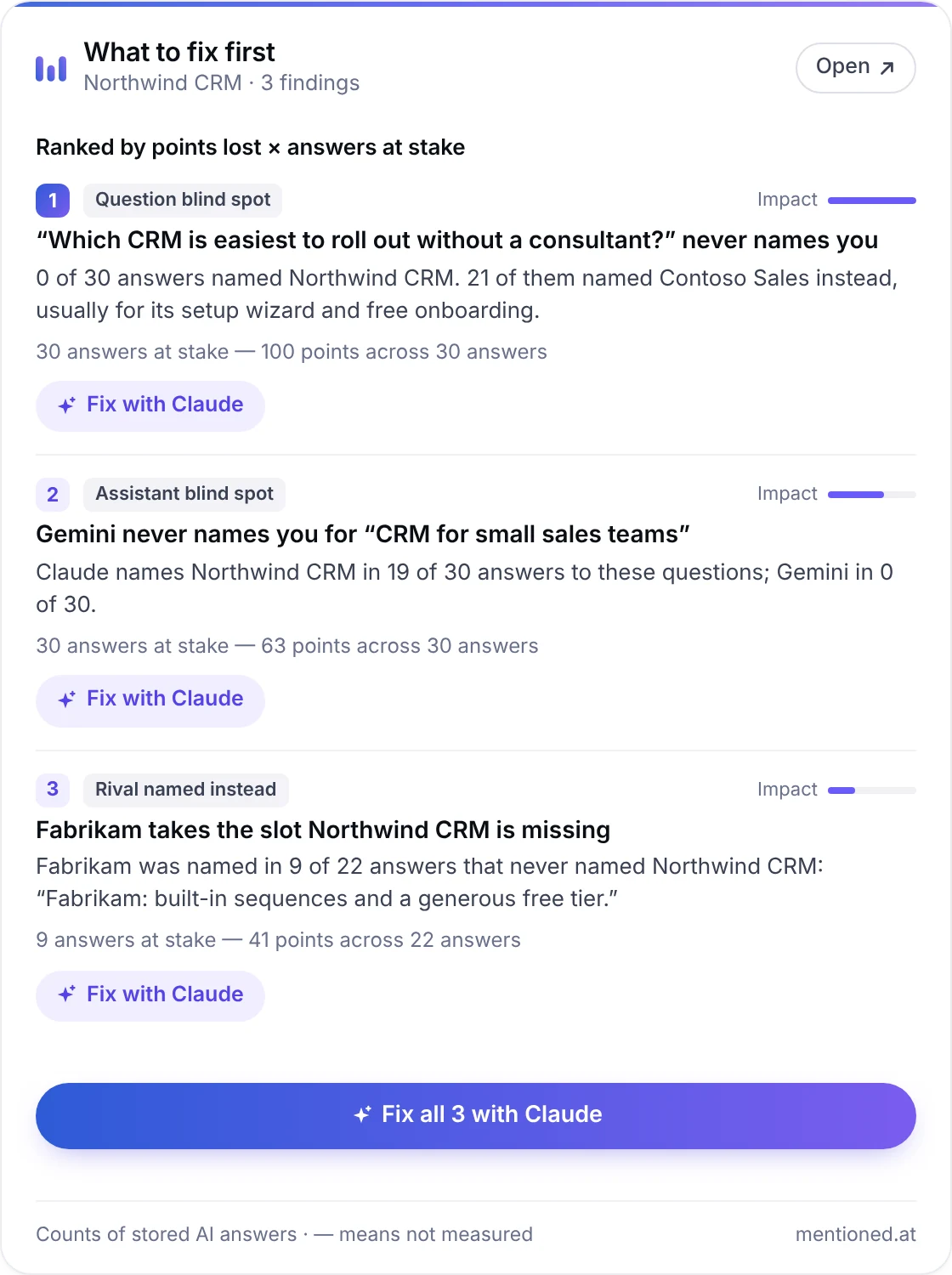
On the overview and actions cards, each finding has a Fix with Claude button (named after the assistant you are in, so Fix with ChatGPT in ChatGPT), and the list has Fix all. Pressing one writes the message for you. Claude puts it in your message box to review and send; some assistants send it straight away. It asks the assistant to pull the finding’s evidence with fix_brief and do the work, and repeats that recheck, track_keyword and log_change need your yes. The button never runs anything itself. If your client does not accept messages from a card, the buttons do not appear.
claude.ai and Claude Desktop: connect without a token
The custom connector dialog in claude.ai and Claude Desktop does not take a pasted token at all — it signs in with OAuth instead. That now works here, and it is the easier path of the two: there is no token to copy and none to lose.
- In Claude, open Settings → Connectors → Add custom connector.
- Paste
https://mentioned.at/mcpas the URL. Leave the optional client ID and secret blank — Claude registers itself. - Press Connect. A mentioned.at page opens asking you to approve it.
- If you are not signed in, you will be sent to the normal login first — including your two-factor code if you have it turned on. The approve screen never asks for your password, which is deliberate: an app connection is not a way around 2FA.
- Press Allow. Claude is connected.
The connection stays signed in on its own and renews itself in the background. It can do exactly what a token can: the same eleven read-only tools, plus recheck and track_keyword, which ask you first. It has no access to your password or your stored API keys.
Connected apps are listed under Connect Claude in Settings, with a Disconnect button. Disconnecting stops that app immediately; it can ask for your approval again whenever you like.
Claude Desktop with a token instead
If you would rather use the token you just made than the connector dialog — on a machine where you do not want to sign in, say — there is a way, through a small local bridge: mcp-remote, which Claude Desktop launches as an ordinary local server and which forwards to us over HTTPS with your header attached. The connector above is simpler and needs no Node; this is here for the case where it is not what you want.
Open Settings → Developer → Edit Config (that button creates the file if it does not exist; on a Mac it is ~/Library/Application Support/Claude/claude_desktop_config.json) and add:
{
  "mcpServers": {
    "mentioned": {
      "command": "npx",
      "args": [
        "-y", "mcp-remote",
        "https://mentioned.at/mcp",
        "--header", "Authorization:${AUTH_HEADER}",
        "--transport", "http-only"
      ],
      "env": { "AUTH_HEADER": "Bearer mnt_YOUR_TOKEN" }
    }
  }
}
Then quit Claude Desktop completely and reopen it — closing the window is not enough; it reads this file only at launch.
Three details in that config are deliberate, and each one is a bug you would otherwise hit:
Authorization:${AUTH_HEADER}has no space after the colon, with the wordBearerliving inenvinstead. Several clients mangle spaces insideargs, and the symptom is a 401 that looks like a bad token rather than a bad config.--transport http-onlybecause this server speaks Streamable HTTP and opens no SSE stream. Without it the bridge probes for one first and answers its own 405.-ysonpxnever stops to ask about installing the bridge — a launched-by-GUI process has nobody to answer the prompt, and it simply hangs.
It needs Node installed, and your token ends up in that config file in plain text — which is how every MCP client stores credentials, but worth knowing before you put it on a shared machine. Revoke it from Settings if that machine stops being yours.
Which clients this works with
claude.ai and Claude Desktop through the connector dialog, with no token at all. Claude Code directly, with the command above. Claude Desktop with a token through mcp-remote, if you prefer that. And any other MCP client that can either send an Authorization header or speak OAuth 2.1 — the server publishes the standard discovery documents at /.well-known/oauth-protected-resource and /.well-known/oauth-authorization-server, registers clients dynamically, and requires PKCE.
The two ways in are independent. A token keeps working if you disconnect an app, and disconnecting an app does not touch your tokens.
11. Limits
- Checks: 3 on our key for a free account — for all time, not per day — then 60 a month on Starter, 200 on Pro and 600 on Agency. A free account can keep checking indefinitely by adding its own API key. A global daily cap sits above all of it, because every check spends real API budget.
- Tracked queries: 5 on Free, 20 on Starter, 60 on Pro, 200 on Agency. Counted across every workspace you own, so making a second workspace does not make a second allowance — but a workspace you were merely invited to is billed to whoever owns it, not to you.
- Models per check: 3 on Free and Starter, all 6 on Pro and Agency. A tracked query is capped lower by the platform, not by your plan — see the note in the pricing page.
- The free path runs on Claude, ChatGPT and Gemini, paid for by us. DeepSeek, Llama 3.3 and Perplexity run on a key you supply.
- Sentiment, Actions and MCP are on Starter and above. Accuracy, Fixes, the AI gap report, prospect audits and shared workspaces are on Pro and Agency. Prospect audits are 5 a month on Pro and 20 on Agency. The Competitors screen is on every plan.
- MCP is rate-limited to 60 requests a minute, which is far more than a working session uses.
Starter is $39/month, Pro is $129/month and Agency is $399/month, billed monthly by card and cancellable at any time. Free stays free, with no card required.
12. When something looks wrong
- A figure shows an em dash. That is not a bug and not a zero — it means the figure was not measurable. Check the run status on the Keywords screen.
- Sources is empty. Almost always because no search-grounded model has run. See the note above; the screen itself says which case you are in.
- MCP returns 503. The server is deployed but its token or OAuth storage has not been set up on that deployment yet. The error names the exact migration file.
- The connector dialog says it cannot reach the server. Check the URL is
https://mentioned.at/mcpwith no trailing slash. If the approve page loads but sends you back with an error, the message on that page says which part of the request Claude sent was wrong. - MCP returns 401. The token is wrong, revoked, or not being sent. The response is identical for all three on purpose, so the endpoint cannot be used to find out which tokens exist.
- A model errors on a check. The other models still complete; the failure is reported per model rather than failing the whole run. “Rejected that API key” means the key; “a request it rejected — that’s on us” means our request, so do not go rotating a working key.
13. What we store
Checks, their answers, and your tracked keywords. IP addresses are stored hashed, never in the clear. API keys are encrypted; MCP tokens are stored only as a hash. The full detail is on the privacy page.
14. What we email you
Three things, all of them triggered by something you did, and nothing else:
- A password reset link, when you ask for one from the forgot-password page.
- An address verification link, which is required before you subscribe or mint an MCP token — those two send receipts and hand out a credential, so the address behind them has to reach a person. Everything else works unverified.
- A workspace invite, when someone invites you to their team.
We do not email results, weekly digests, score alerts or marketing. If you saved your address next to a check result, that is what it is for — a way to reach you if those ever ship — and nothing goes out today.
If a reset or verification mail has not arrived, check your spam folder. It comes from no-reply@send.mentioned.at. Links are single-use and expire, so if one has gone stale just request another.